
How to Build a Clean, Minimalist PC Setup on a Budget

How to Build a Clean, Minimalist PC Setup on a Budget

A minimalist PC setup doesn’t just look great — it also improves focus and productivity. The good news? You don’t need expensive gear to create a clean, modern workspace. Here’s how to design a stylish setup that’s affordable and efficient.

1. Keep It Simple

Start by removing anything you don’t use daily.
A tidy desk instantly feels more professional and calming.
Stick to essentials: monitor, keyboard, mouse, and maybe a small speaker set or headset stand.

2. Choose a Neutral Color Scheme

White, black, or grey tones always look clean and timeless.
If your components or furniture don’t match, use subtle accents — like LED lighting behind the monitor — to tie everything together.

3. Use Cable Management Tricks

Cables are often what make setups look messy.

  • Use Velcro straps or cable sleeves to bundle cords.
  • Route cables through holes in your desk or along edges using clips.
  • Consider a wireless keyboard and mouse for a clutter-free surface.

A clean setup doesn’t need to be expensive — just well-organized.

4. Pick the Right Desk and Monitor Size

A simple, sturdy desk with enough depth for your monitor is key.
Avoid overcrowding: a 24–27” monitor is ideal for most users.
If you prefer dual screens, position them symmetrically for a balanced look.

5. Add Subtle Lighting

Soft lighting enhances the aesthetic without being distracting.

  • LED light strips behind your desk or monitor.
  • A small desk lamp with warm or cool tones.

Avoid harsh lighting that reflects off your screen.

6. Keep Function Over Flash

Choose practical accessories over flashy ones.
For example, a comfortable chair, wrist rest, and decent mouse pad do more for daily comfort than RGB accessories.

Final Thoughts

Minimalist setups are about intentional simplicity — only keeping what adds value. With a few smart tweaks and some creativity, you can transform your workspace into a clean, focused environment that looks good and performs even better.


Best Budget Gaming Setups Under R20,000

Best Budget Gaming Setups Under R20,000

You don’t need to spend a fortune to enjoy gaming in 2025. Thanks to affordable components and optimized titles, a budget of around R20,000 can get you a surprisingly capable gaming setup.

Here’s how to get the most power and fun out of your money.

1. Prioritize the Right Components

For gaming, performance depends mainly on your GPU (graphics card) and CPU.
A smart build keeps the balance between the two.

Example configuration under R20,000 (approximate):

  • CPU: AMD Ryzen 5 5600 or Intel i5-12400
  • GPU: NVIDIA RTX 4060 or AMD RX 7600
  • RAM: 16GB DDR4
  • Storage: 1TB SSD
  • PSU: 650W 80+ Bronze
  • Case: Airflow mid-tower

This setup handles modern games like Apex Legends, Fortnite, and Cyberpunk 2077 smoothly at 1080p or 1440p.

2. Focus on Value Monitors

A 24” 1080p 144Hz monitor gives excellent visuals for competitive gaming without breaking the bank.
IPS panels offer better colors, while TN panels provide slightly faster response times.

3. Don’t Forget Peripherals

Budget builds often overlook the extras.

  • Keyboard: Mechanical if possible — better feel and durability.
  • Mouse: Adjustable DPI for precision.
  • Headset: Comfortable with clear audio.

These peripherals add immersion and comfort without costing much.

4. Optimize for Future Upgrades

Choose a motherboard that supports newer CPUs and DDR5 RAM, so you can upgrade later.
A quality case and PSU also make future changes easier.

5. Save with Smart Choices

  • Skip RGB if you’re on a budget — focus on performance first.
  • Reuse a monitor or peripherals if you already have them.
  • Look out for combo deals and seasonal discounts.

Final Thoughts

Even on a budget, you can enjoy smooth, beautiful gaming experiences. By spending wisely and planning for upgrades, a R20,000 build can be your entry point into modern gaming without compromise.


How to Keep Your PC Running Faster for Longer

How to Keep Your PC Running Faster for Longer

How to Keep Your PC Running Faster for Longer

A well-maintained computer doesn’t just last longer — it also performs better every day. Dust, software clutter, and outdated parts can all slow things down over time. Here’s a simple routine to keep your PC running fast, cool, and reliable.


1. Keep It Clean (Physically)

Dust can clog fans, block airflow, and raise internal temperatures.

  • Use compressed air to blow dust from fans, vents, and heatsinks.
  • Wipe down surfaces regularly with a microfiber cloth.
  • Make sure cables aren’t blocking airflow inside your case.

A cooler PC lasts longer and performs better under load.


2. Update Your Software
Outdated software can cause lag or security issues.

  • Update Windows and drivers regularly.
  • Use your GPU software (like NVIDIA GeForce Experience or AMD Adrenalin) to keep graphics drivers fresh.
  • Don’t ignore BIOS and firmware updates — they often improve stability.


3. Manage Startup Apps
Too many background apps slow boot times and drain resources.
Open Task Manager Startup tab Disable anything unnecessary.
Keep only your antivirus and essential apps on auto-start.


4. Free Up Storage Space

  • Delete old temporary files and downloads.
  • Empty the Recycle Bin.
  • Use Windows Disk Cleanup or Storage Sense.

If your drive is 90% full, your system slows down — aim to keep at least 20% free space.


5. Keep Temperatures Low
Install extra fans or clean out old ones to maintain good airflow.
Consider replacing thermal paste on older CPUs or upgrading to an aftermarket cooler if temperatures are high.


6. Run Regular Virus Scans
Malware can silently consume system resources.
Use a reputable antivirus program and schedule weekly scans.


7. Consider Hardware Upgrades
If you’ve done all the above and performance still lags, a few affordable upgrades can make a big difference:

  • Add an SSD if you’re still on an HDD.
  • Increase RAM to 16GB or more.
  • Clean install Windows for a fresh start.


Final Thoughts
With just a bit of care and regular maintenance, your PC can perform smoothly for years. Keep it clean, cool, and updated — and it’ll feel as good as new every time you power it on.

SSD vs HDD: Which Storage Type Is Right for You

 SSD vs HDD: Which Storage Type Is Right for You?

SSD vs HDD: Which Storage Type Is Right for You?

When shopping for a new computer or upgrading your current one, you’ll come across two main types of storage: HDD (Hard Disk Drive) and SSD (Solid-State Drive). Both store your files, programs, and operating system, but they work in very different ways — and the choice you make can dramatically affect your PC’s speed.

Here’s what you need to know before deciding.


1. How They Work

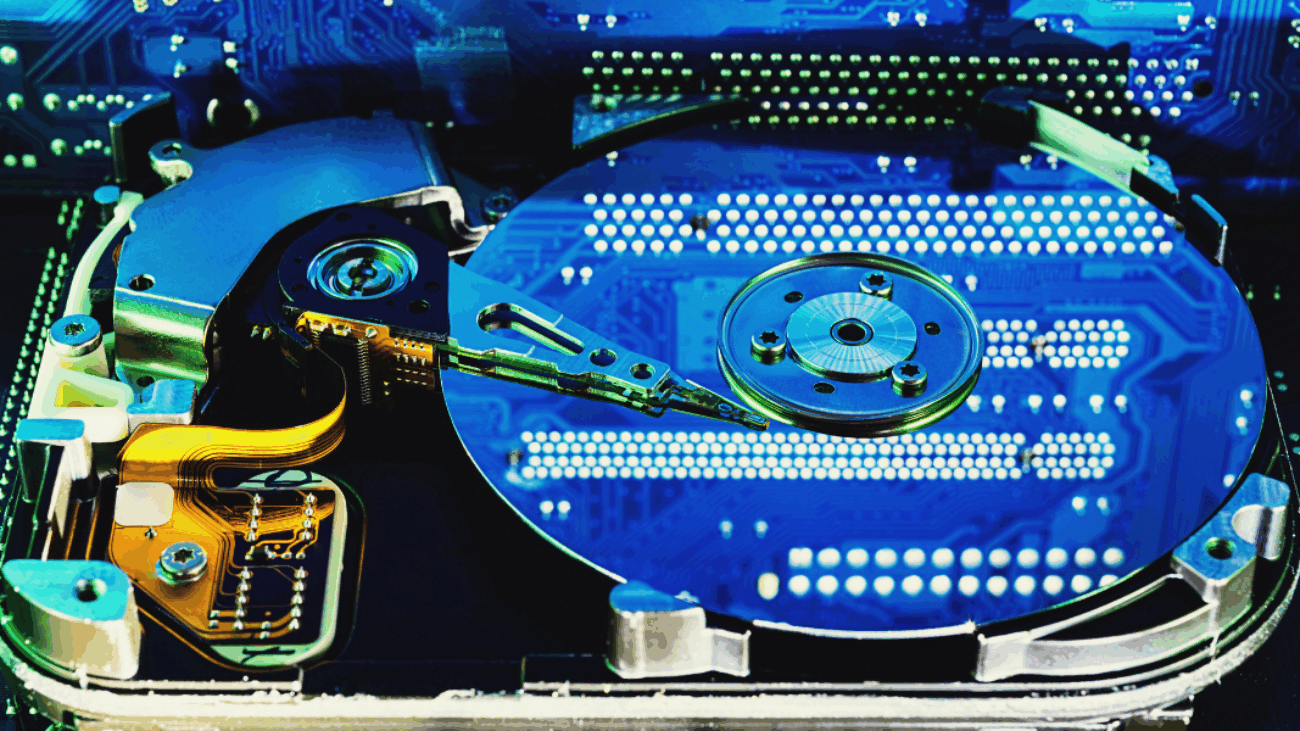
  • HDDs are mechanical drives with spinning disks that read and write data using a magnetic head.
  • SSDs, on the other hand, use flash memory chips with no moving parts — like a super-fast USB stick.

The result? SSDs are faster, quieter, and more durable.


2. Speed Comparison

This is where SSDs truly shine.

  • Boot time: HDD — around 40–60 seconds | SSD — 10 seconds or less
  • App loading: HDD — several seconds | SSD — almost instant
  • File transfers: SSDs can be 5–10× faster

If performance and responsiveness matter, SSDs are the clear winner.


3. Durability and Noise

Because HDDs rely on moving parts, they’re more prone to damage from drops or vibrations. They also generate noise during operation.
SSDs have no moving parts, making them silent, shock-resistant, and longer-lasting.


4. Capacity and Price

HDDs still offer more storage for less money — great for bulk file storage.

  • HDDs: Cheaper, ideal for backups and large files.
  • SSDs: Pricier per GB but far faster and more efficient.

Many users choose a hybrid setup: SSD for the operating system and apps, HDD for extra storage.


5. Power Efficiency

SSDs consume less power, which helps laptops last longer on battery and reduces heat buildup in desktops.


Final Verdict

If you value speed, reliability, and efficiency, go for an SSD.
If you need massive storage on a tight budget, an HDD still makes sense.
For the best of both worlds, combine the two — fast SSD for daily tasks, large HDD for everything else.

How to Choose the Right PC for Your Needs in 2025

How to Choose the Right PC for Your Needs in 2025

How to Choose the Right PC for Your Needs in 2025

Choosing a new PC can feel overwhelming, especially with so many new processors, graphics cards, and configurations available in 2025. Whether you’re upgrading your old machine or buying your first desktop, understanding what you actually need makes all the difference.

Here’s a simple guide to help you pick the right system — no matter your budget or use case.

1. Define What You’ll Use It For
Start by identifying your main purpose.

  • Office and everyday tasks: You’ll only need a basic setup that can handle web browsing, streaming, and documents.
  • Gaming: A stronger CPU and dedicated GPU are essential.
  • Content creation: Video editing and 3D rendering need high-core CPUs and large amounts of RAM.
  • Professional or engineering work: Prioritize workstation-grade components for stability and processing power.

Knowing your usage helps avoid overspending on features you’ll never use.

2. Choose the Right Processor (CPU)
Your CPU determines how quickly your PC handles tasks.

  • Entry-level users: Look for Intel Core i3 or AMD Ryzen 3 processors.
  • Mid-range users: Intel i5 or Ryzen 5 give excellent value for most users.
  • High-end power users: Intel i7/i9 or Ryzen 7/9 deliver premium performance.

Always match the CPU with a compatible motherboard (check the socket type).

3. Decide on Graphics (GPU)
If you’re not gaming or doing graphic-heavy tasks, integrated graphics built into most CPUs will do fine.

Gamers and creators, however, should look for:

  • 1080p gaming: NVIDIA RTX 4060 / AMD RX 7600
  • 1440p or 4K gaming: RTX 4070–4080 / RX 7900 XT
  • Rendering & design: GPUs with high VRAM (12GB+) for smoother performance.

4. RAM and Storage

  • RAM: 16GB is the current sweet spot for general users; 32GB is ideal for creators or multitaskers.
  • Storage: Go for an SSD (Solid-State Drive) — it’s several times faster than a hard drive. A 1TB NVMe SSD is both fast and spacious.

For extra storage, add a traditional HDD for large files or backups.

5. Consider Size and Upgradability
PCs come in all sizes, from compact mini-ITX builds to full-tower cases.

  • Small form factors save space but are harder to upgrade.
  • Mid-towers are the most balanced for home users.
  • Full towers allow the most cooling and expansion options.

If you plan to upgrade later, prioritize a case with good airflow and space for extra drives or components.

6. Don’t Forget the Power Supply and Cooling
A quality power supply unit (PSU) ensures reliability — look for an 80+ Gold rating.

For cooling, at least two case fans and a decent CPU cooler will keep things running efficiently.

7. Monitor, Keyboard, and Other Peripherals
Don’t overlook your peripherals — they define how your PC feels day to day.

A high-refresh-rate monitor, mechanical keyboard, and comfortable mouse can greatly improve the experience, no matter what you use your PC for.

Final Thoughts
The “best” PC isn’t the most expensive one — it’s the one that matches your needs. By balancing performance, budget, and future upgrade potential, you can build or buy a system that stays fast, efficient, and enjoyable for years to come.